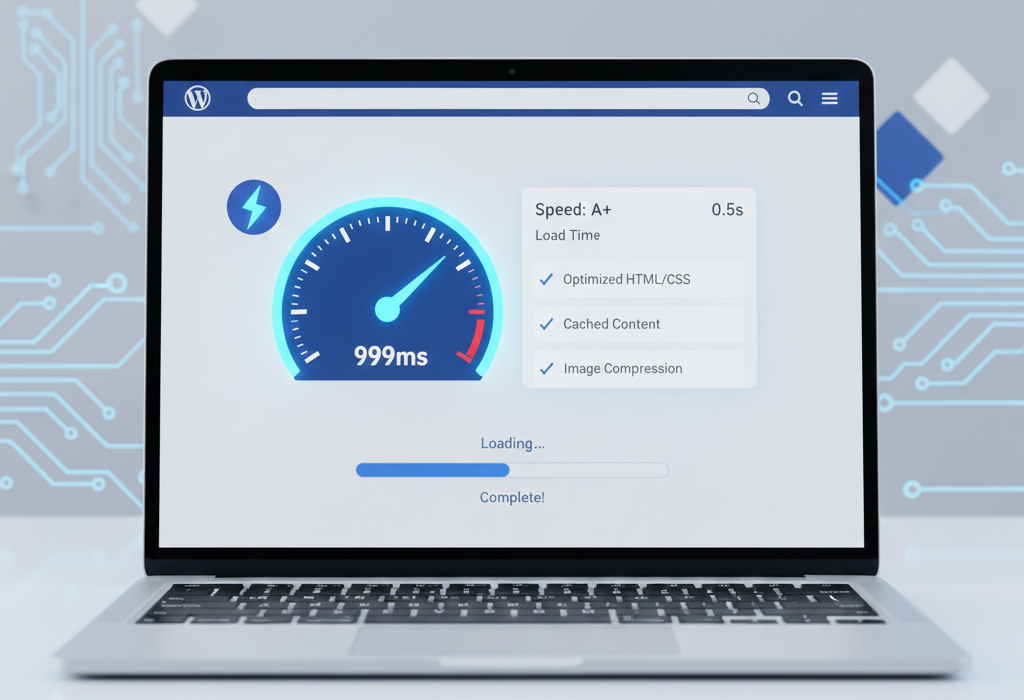
WordPress Speed Optimization 2025: Ultimate Guide to Boost Your Website Performance
By Aamer Yousuf | December 5, 2025 | 20 min read
Last month, I watched a potential client’s face fall when their beautiful WordPress site took 8 seconds to load. “My bounce rate is terrible,” they admitted. “People leave before they even see my content.” Sound familiar? After implementing WordPress speed optimization 2025 techniques, that same site now loads in under 2 seconds, and their bounce rate dropped by 47%.
Speed isn’t just about impatience—it’s about survival in today’s digital landscape. Google’s algorithm prioritizes fast sites, users expect instant loading, and every second of delay costs you conversions. Whether you’re running a blog, online store, or business website, learning how to speed up WordPress is no longer optional.
This comprehensive guide to WordPress speed optimization 2025 covers everything from quick wins you can implement today to advanced techniques for maximum performance. I’ll show you exactly how to improve WordPress website speed using proven methods that work in 2025’s evolving web environment.
Table of Contents
Why WordPress Speed Optimization 2025 Matters More Than Ever
The stakes for website speed have never been higher. Google’s Core Web Vitals became a ranking factor, and in 2025, these metrics carry even more weight in search results.
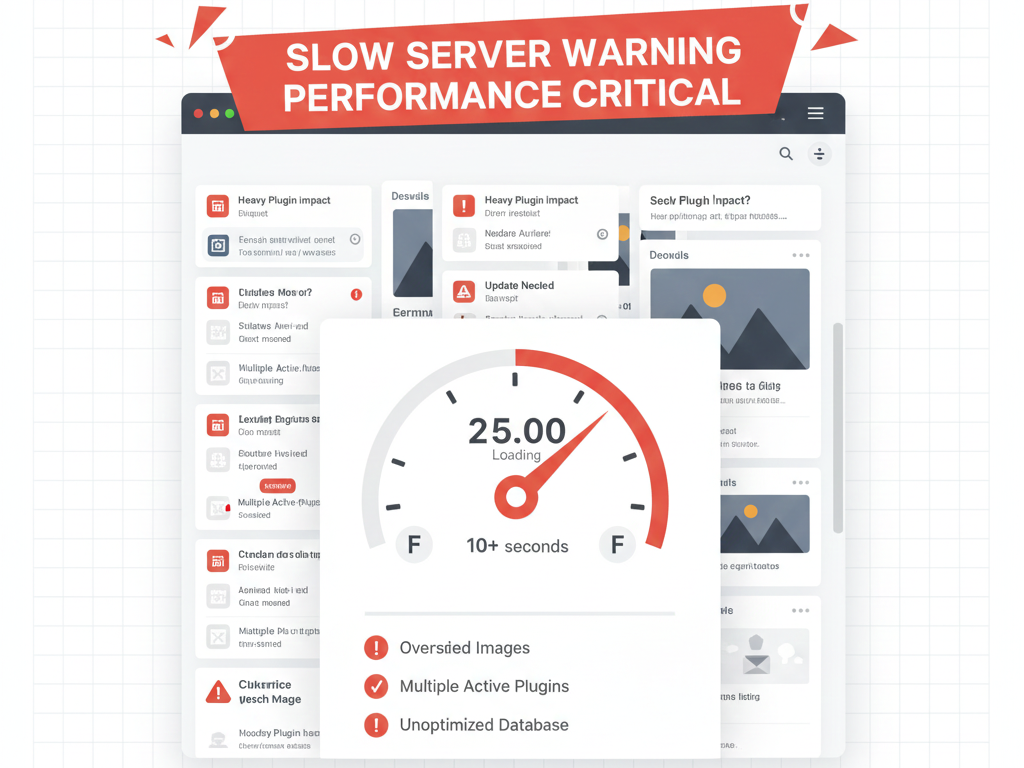
Consider these statistics:
- A 1-second delay in page load time can reduce conversions by 7%
- 53% of mobile users abandon sites that take longer than 3 seconds to load
- Fast websites rank higher in search results, driving more organic traffic
- Page speed directly impacts user experience, engagement, and revenue
WordPress speed optimization 2025 isn’t just technical housekeeping—it’s a competitive advantage. Your faster site will outrank, out-convert, and outperform slower competitors.
Beyond SEO, speed affects every business metric you care about. E-commerce stores lose sales with each second of delay. Service providers lose leads. Content creators lose readers and ad revenue. The cost of a slow website compounds daily.
Measuring Your Current WordPress Performance
Before you can improve WordPress website speed, you need to establish a baseline. Here’s how to properly measure your current performance:
Use PageSpeed Insights
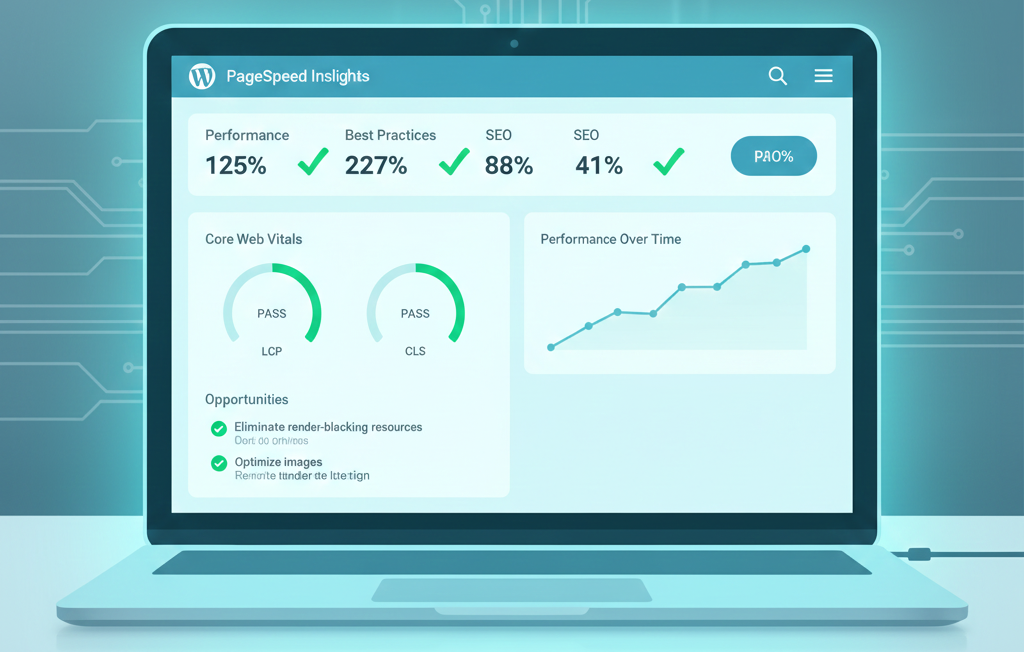
Google PageSpeed Insights provides the most relevant performance data since it shows how Google sees your site.
Step 1: Visit PageSpeed Insights and enter your URL
Step 2: Review both Mobile and Desktop scores
Step 3: Note your Core Web Vitals metrics:
- Largest Contentful Paint (LCP)
- First Input Delay (FID) / Interaction to Next Paint (INP)
- Cumulative Layout Shift (CLS)
Step 4: Review specific recommendations provided
Aim for a PageSpeed Insights score of 90+ for optimal WordPress performance optimization. Anything below 50 indicates serious issues needing immediate attention.
Additional Testing Tools
- GTmetrix: Provides detailed waterfall charts showing exactly what’s slowing your site
- WebPageTest: Offers advanced testing from multiple locations
- Pingdom: Simple interface with clear performance grades
Test your site from multiple locations to understand global performance. A site that loads quickly in New York might be slow in Mumbai due to server location.
Document your current metrics before making changes. This baseline lets you measure improvement and prove ROI for your WordPress speed optimization 2025 efforts.
Choose WordPress Hosting for Speed
Your hosting provider forms the foundation of WordPress speed optimization 2025. No amount of optimization can compensate for poor hosting.
Shared Hosting Limitations
Budget shared hosting often crams hundreds of sites onto one server, creating performance bottlenecks. If you’re serious about WordPress performance optimization, move beyond basic shared hosting.
Managed WordPress Hosting
Managed WordPress hosts optimize their infrastructure specifically for WordPress:
- Server-level caching
- Automatic updates
- WordPress-specific security
- Expert support
Providers like WP Engine, Kinsta, and Cloudways offer managed hosting with speed-focused configurations. Yes, they cost more than $5/month shared hosting, but the performance gains justify the investment.
Server Location Matters
Choose hosting with servers geographically close to your primary audience. If most visitors come from Europe, European servers will improve WordPress website speed significantly compared to US-based hosting.
HTTP/2 and PHP Version
Ensure your host supports:
- HTTP/2 or HTTP/3 for faster connections
- PHP 8.1 or newer for better performance
- SSL certificates (HTTPS is faster with HTTP/2)
Check your current PHP version in WordPress dashboard under Tools → Site Health. Update to the latest supported version to reduce server response time.
If you need help evaluating hosting options or migrating to faster infrastructure, YAAM Web Solutions can assess your needs and recommend optimal solutions for WordPress speed optimization 2025.
Implement WordPress Caching Plugins
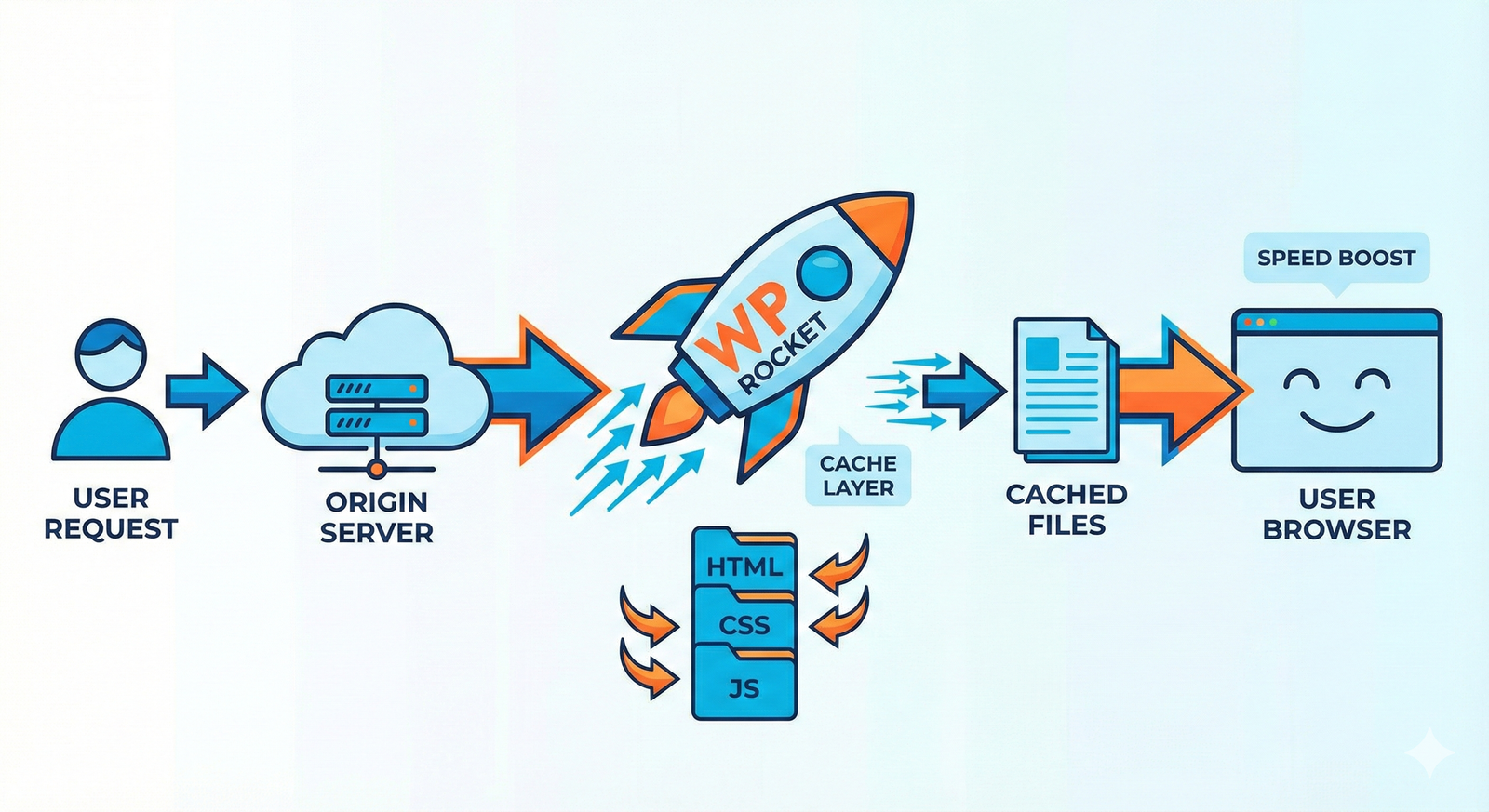
Caching is the single most impactful WordPress site speed tip. It stores static versions of your pages, dramatically reducing server processing time.
How Caching Works
Without caching, WordPress processes PHP, queries databases, and generates HTML for every single page view. With caching, WordPress serves pre-generated HTML files, reducing load time by 50-80%.
Best WordPress Caching Plugins
WP Rocket (Premium) The easiest and most comprehensive caching solution. It handles page caching, browser caching, GZIP compression, and integrates with CDNs. Perfect for those new to WordPress performance optimization.
W3 Total Cache (Free) Powerful but complex. Offers extensive configuration options including page cache, object cache, database cache, and browser cache. Requires technical knowledge to configure properly.
WP Super Cache (Free) Developed by Automattic, it’s simpler than W3 Total Cache while still effective. Great middle ground between ease of use and functionality.
LiteSpeed Cache (Free) If your host uses LiteSpeed servers, this plugin provides exceptional performance with built-in image optimization and minification features.
Basic Caching Setup
Step 1: Install your chosen caching plugin
Step 2: Enable page caching (usually one-click in plugin settings)
Step 3: Enable GZIP compression
Step 4: Set cache expiration (7 days works well for most sites)
Step 5: Configure mobile caching separately if your theme isn’t fully responsive
Step 6: Test your site thoroughly to ensure everything works
Clear your cache after making any site changes—cached versions won’t reflect new updates until regenerated.
WordPress Image Optimization Techniques
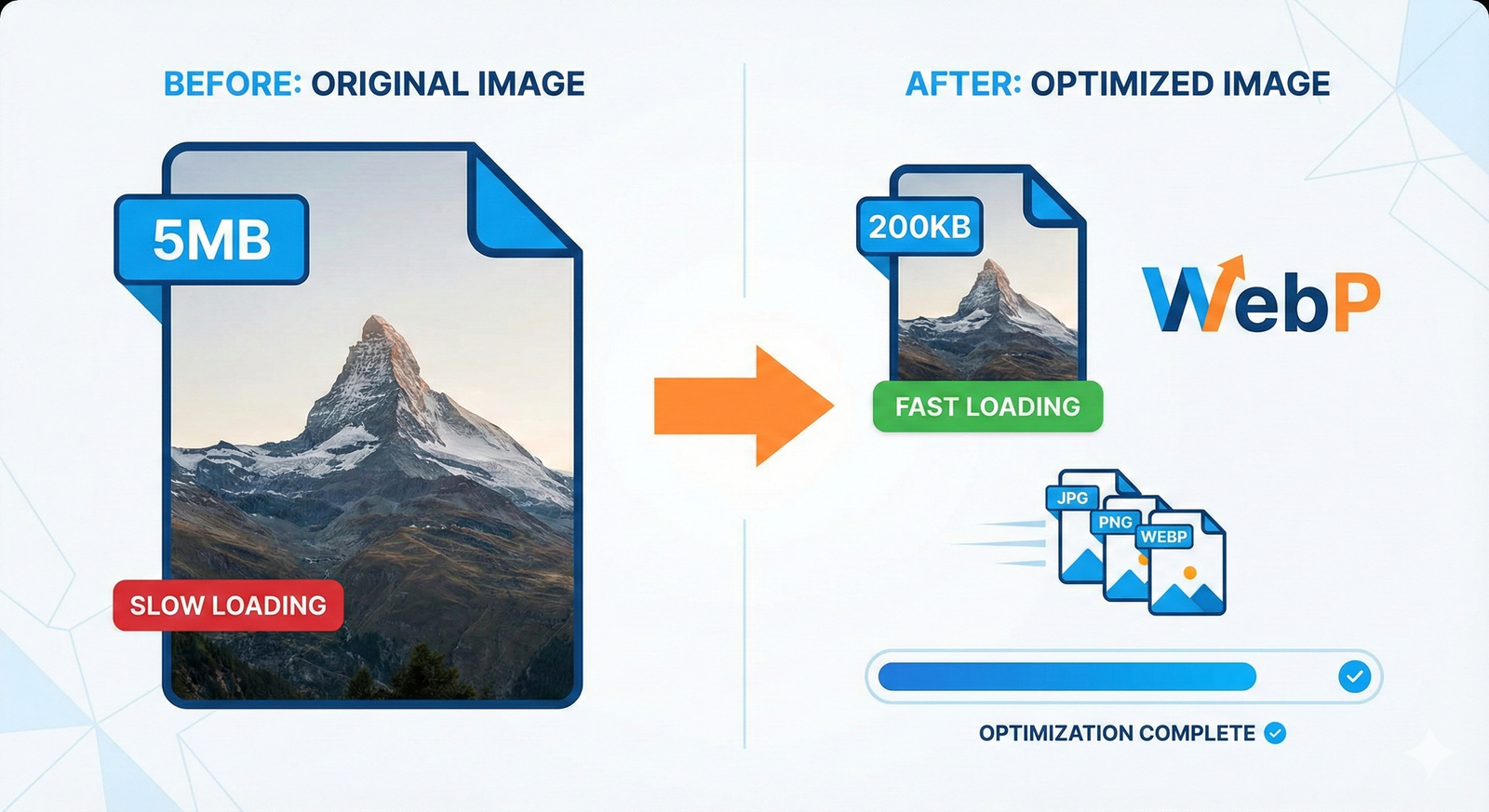
Images typically account for 50-70% of total page weight. WordPress image optimization is critical for WordPress speed optimization 2025.
Choose the Right Image Format
- WebP: Modern format offering 25-35% better compression than JPEG
- JPEG: Best for photographs and complex images
- PNG: Use only when transparency is required
- SVG: Perfect for logos and icons
In 2025, WebP support is universal. Convert all images to WebP for significant file size reductions without quality loss.
Compress Before Uploading
Never upload images directly from your camera or phone. Compress them first using:
- TinyPNG: Free online compression tool
- ShortPixel: WordPress plugin offering bulk optimization
- Imagify: Another excellent WordPress image optimization plugin
Aim for images under 200KB each. Large hero images can be up to 500KB if necessary, but anything larger needs compression.
Implement Lazy Loading Images
Lazy loading defers image loading until users scroll near them, dramatically improving initial page load time.
Most modern WordPress themes include native lazy loading. If yours doesn’t:
Step 1: Install a lazy loading plugin like Lazy Load by WP Rocket
Step 2: Configure to lazy load images and iframes
Step 3: Exclude above-the-fold images from lazy loading
Lazy loading is now a standard WordPress site speed tip that every site should implement.
Use Responsive Images
WordPress automatically creates multiple image sizes. Ensure your theme serves appropriately sized images based on device screen size—don’t force mobile users to download desktop-sized images.
Optimize Image Dimensions
Upload images at their display size. If an image displays at 800px wide, don’t upload a 3000px version. WordPress will resize it, but the original large file still consumes server resources.
Minify CSS and JS WordPress Files
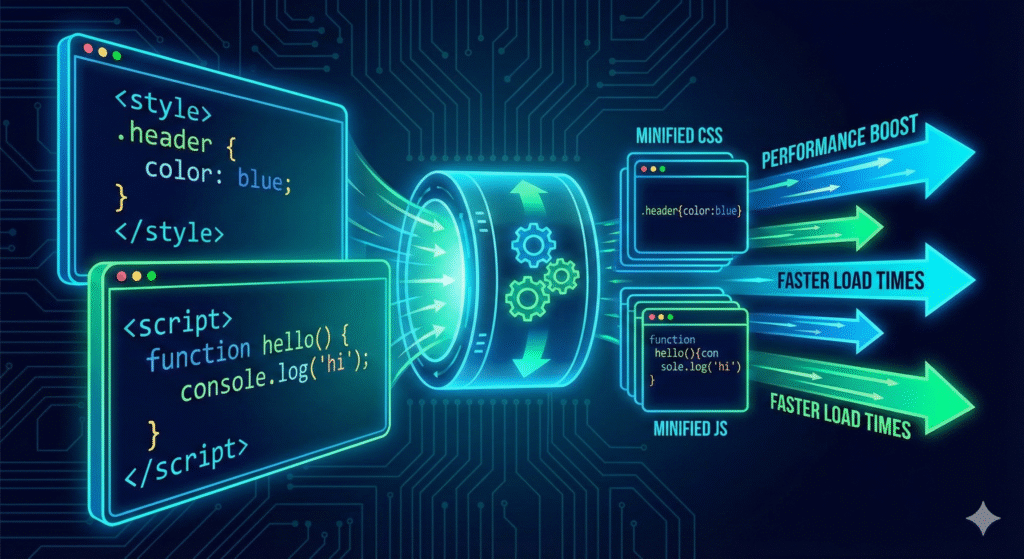
Minification removes unnecessary characters from code files without affecting functionality. This WordPress performance optimization technique reduces file sizes by 20-40%.
What Minification Does
Minification removes:
- Whitespace and line breaks
- Comments
- Unused code
- Redundant semicolons
The result is smaller files that transfer faster, helping improve WordPress website speed.
Minification Methods
Using Caching Plugins WP Rocket and most other WordPress caching plugins include minification features:
Step 1: Navigate to plugin settings
Step 2: Enable CSS minification
Step 3: Enable JavaScript minification
Step 4: Test your site thoroughly—some scripts break when minified
Step 5: Exclude problematic scripts from minification if needed
Standalone Minification Plugins If your caching plugin doesn’t include minification, use Autoptimize—a free plugin specifically for minifying CSS and JS WordPress files.
Combine Files
Beyond minification, combining multiple CSS or JavaScript files into single files reduces HTTP requests. Most optimization plugins offer this feature.
Caution: File combination can break some themes and plugins. Always test thoroughly and be prepared to exclude certain files.
Defer JavaScript Loading
Deferring JavaScript loads the page content first, then executes scripts. This dramatically improves perceived load time—the page becomes interactive faster even if total load time is similar.
Most optimization plugins offer JavaScript deferring options. Enable it and test thoroughly.
Database Optimization in WordPress
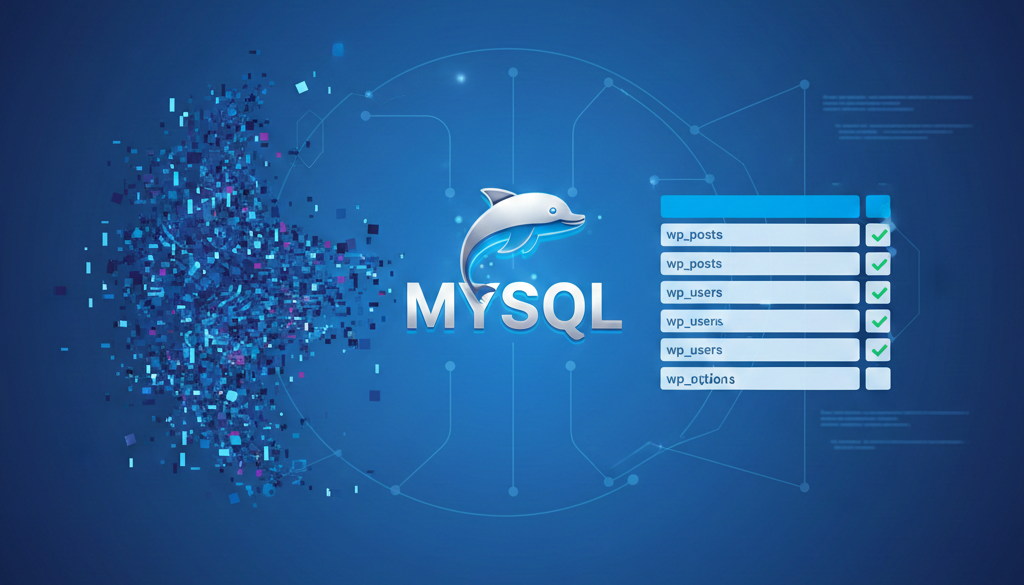
Your WordPress database accumulates clutter over time, slowing queries. Regular database optimization in WordPress is essential for WordPress speed optimization 2025.
What Slows Down Your Database
- Post revisions (WordPress saves every draft)
- Trashed posts and comments
- Transient options (temporary cached data)
- Spam comments
- Unused tables from deleted plugins
These accumulate into thousands of unnecessary database rows, slowing queries.
Manual Database Cleanup
Via phpMyAdmin (Advanced users):
Step 1: Access phpMyAdmin through your hosting control panel
Step 2: Select your WordPress database
Step 3: Optimize each table (select all, then choose “Optimize table” from dropdown)
Caution: Back up your database before making any changes.
WordPress Database Optimization Plugins
WP-Optimize (Free) The most popular database optimization plugin:
Step 1: Install and activate WP-Optimize
Step 2: Review what will be cleaned (post revisions, spam, transients)
Step 3: Run optimization
Step 4: Schedule automatic weekly cleanups
Advanced Database Cleaner (Free) Offers deeper cleaning including orphaned data and unused tables left by deleted plugins.
Limit Post Revisions
By default, WordPress saves unlimited revisions. Limit them to improve WordPress website speed:
Add this to your wp-config.php file:
define('WP_POST_REVISIONS', 3);
This limits WordPress to keeping only the 3 most recent revisions per post.
Disable Unused Database Tables
Deleted plugins often leave database tables behind. Use Advanced Database Cleaner to identify and remove tables from plugins you no longer use.
Set Up CDN for WordPress
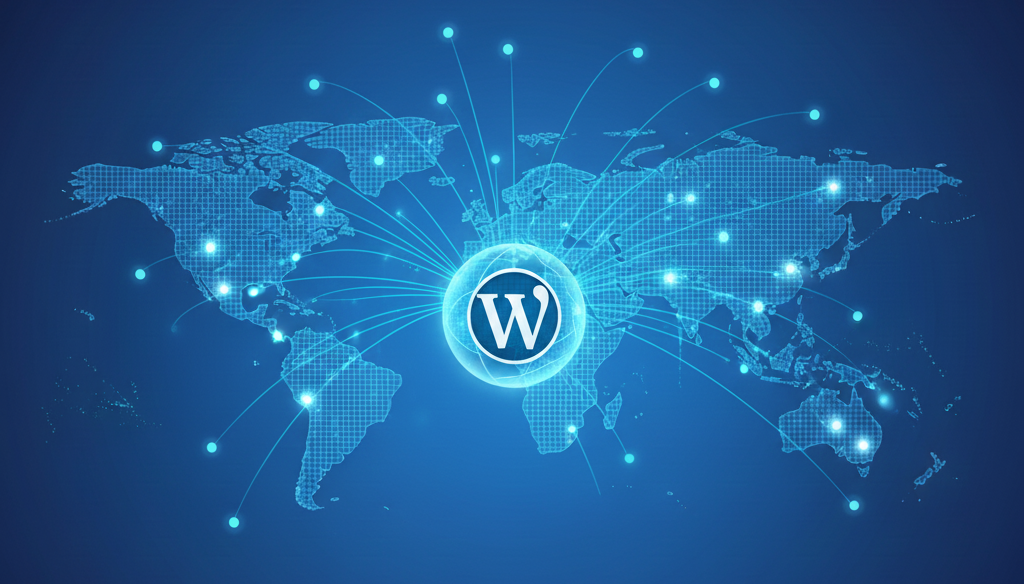
A Content Delivery Network (CDN) serves your static files (images, CSS, JavaScript) from servers geographically close to your visitors. This is crucial for global WordPress performance optimization.
How CDN for WordPress Works
Instead of all visitors downloading images from your single server, the CDN stores copies of your files across dozens of global locations. A visitor in Tokyo gets files from a Tokyo server, while a New York visitor gets them from New York—both experience fast loading regardless of your server’s location.
Best CDN Providers for 2025
Cloudflare (Free tier available) Easiest to set up, offers free plan with generous limits:
Step 1: Create a Cloudflare account
Step 2: Add your site
Step 3: Update your domain’s nameservers
Step 4: Configure WordPress settings (usually automatic)
Cloudflare also provides security features and DDoS protection.
BunnyCDN (Budget-friendly) Excellent performance at competitive pricing. Charges only for actual bandwidth used.
StackPath (Premium) Enterprise-grade CDN with advanced features. More expensive but offers excellent WordPress speed optimization 2025 performance.
KeyCDN Developer-friendly with straightforward pricing and solid performance.
CDN Configuration Best Practices
- Enable caching for static files (images, CSS, JS)
- Set appropriate cache expiration times
- Configure HTTPS properly
- Test from multiple locations to verify CDN functionality
Most WordPress caching plugins include CDN integration, making setup straightforward even for non-technical users.
Optimize Core Web Vitals WordPress
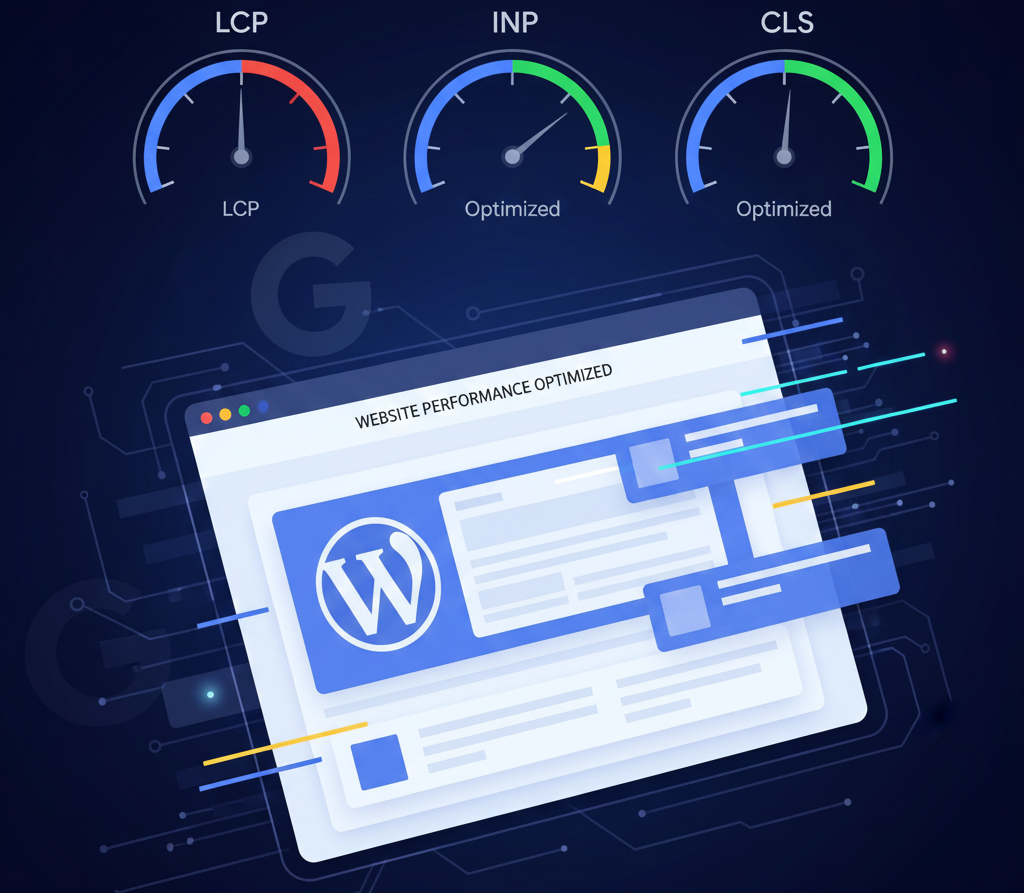
Google’s Core Web Vitals WordPress metrics directly impact search rankings. Optimizing these should be central to your WordPress speed optimization 2025 strategy.
Understanding Core Web Vitals
Largest Contentful Paint (LCP) Measures loading performance. Your largest content element should load within 2.5 seconds.
To improve LCP:
- Optimize images (they’re usually the largest element)
- Improve server response time
- Use fast hosting
- Implement caching
Interaction to Next Paint (INP) Replaced First Input Delay in 2024. Measures responsiveness to user interactions. Target under 200 milliseconds.
To improve INP:
- Minimize JavaScript execution time
- Defer non-critical JavaScript
- Remove unused scripts
- Use efficient code
Cumulative Layout Shift (CLS) Measures visual stability. Content shouldn’t shift unexpectedly during loading. Target under 0.1.
To improve CLS:
- Set size attributes on images and videos
- Reserve space for ads
- Avoid inserting content above existing content
- Use CSS transforms instead of layout-triggering properties
Testing Core Web Vitals
Use Google Search Console to see real-world Core Web Vitals data from actual visitors to your site. This is more valuable than lab testing because it reflects true user experience.
Address any URLs flagged as “Poor” immediately—these directly hurt your search rankings.
Reduce Server Response Time
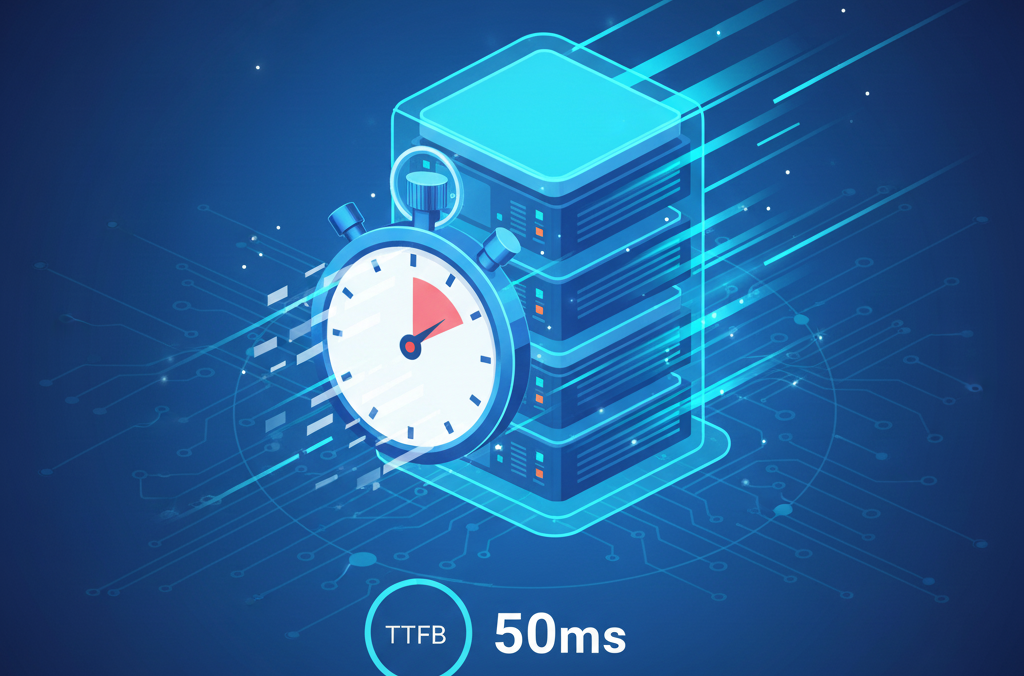
Server response time (Time to First Byte or TTFB) measures how long before your server starts sending data. Slow TTFB undermines all other WordPress performance optimization efforts.
Target TTFB
Aim for under 200 milliseconds. Anything over 500ms indicates serious problems.
Factors Affecting Server Response Time
Server Resources Inadequate CPU, RAM, or storage slows processing. Upgrade your hosting plan if you’re consistently maxing out resources.
Database Queries Slow or excessive database queries delay responses. Optimize your database and use object caching to reduce query load.
PHP Version Older PHP versions are significantly slower. Always use the latest supported version.
Unoptimized Code Poorly coded themes and plugins can drastically slow server response. Identify problematic code using query monitoring plugins.
Monitoring Server Response Time
Install Query Monitor to identify:
- Slow database queries
- HTTP requests
- PHP errors
- Memory usage
This data helps pinpoint exactly what’s slowing your server response time.
Object Caching
For high-traffic sites, implement object caching using Redis or Memcached. This stores database query results in memory, drastically reducing database load and improving how to speed up WordPress at scale.
Check if your host supports Redis or Memcached, then install the corresponding WordPress plugin to enable object caching.
Remove Unused Plugins and Themes
Every installed plugin adds code that WordPress must process on every page load, even if you’re not actively using it. Remove unused plugins to improve WordPress website speed.

The Plugin Bloat Problem
Many WordPress sites accumulate plugins over time. You try something, it doesn’t work perfectly, you install another. Soon you’re running 30+ plugins, many barely used.
Each plugin adds:
- Database queries
- HTTP requests
- JavaScript files
- CSS files
- Server processing time
Plugin Audit Process
Step 1: List all installed plugins
Step 2: Identify which ones you actually use regularly
Step 3: Research if remaining plugins are well-coded and maintained
Step 4: Look for plugins that overlap in functionality
Step 5: Deactivate and delete unused plugins
Step 6: Test your site thoroughly after each removal
Evaluating Plugin Quality
Not all plugins impact performance equally. Some are beautifully optimized; others are bloated messes.
Before installing any plugin:
- Check recent reviews for performance mentions
- Verify it’s actively maintained
- Check the code quality if you have technical knowledge
- Test impact on PageSpeed Insights score before and after installation
Theme Considerations
Keep only your active theme and one default WordPress theme (for troubleshooting). Delete everything else.
Consider switching to lightweight themes like GeneratePress, Astra, or Kadence if your current theme is bloated. Modern, speed-focused themes can dramatically improve WordPress site speed tips implementation.
Speed Up WooCommerce Sites
WooCommerce adds significant complexity, making it challenging to speed up WooCommerce sites. However, these techniques help maintain performance:
WooCommerce-Specific Optimization
Disable Cart Fragments WooCommerce’s AJAX cart fragments check constantly, slowing every page. Disable them if you don’t need live cart updates:
Add this code to your child theme’s functions.php:
add_action('wp_enqueue_scripts', 'dequeue_woocommerce_cart_fragments', 11);
function dequeue_woocommerce_cart_fragments() {
    if (is_front_page()) {
        wp_dequeue_script('wc-cart-fragments');
    }
}
Optimize Product Images Product images make or break WooCommerce speed. Implement aggressive WordPress image optimization and lazy loading.
Limit Related Products Reduce the number of related products displayed. Each one requires database queries and image loading.
Use Object Caching WooCommerce makes heavy database use. Object caching with Redis or Memcached significantly improves performance for speed up WooCommerce sites strategies.
Choose WooCommerce-Optimized Hosting
Consider hosts specializing in WooCommerce:
- Kinsta
- SiteGround (WooCommerce hosting plan)
- Liquid Web (Managed WooCommerce hosting)
These providers optimize server configurations specifically for WooCommerce performance.
Defer Non-Critical Scripts
WooCommerce loads scripts on every page, even when not needed. Use plugins like Asset CleanUp to load WooCommerce scripts only on relevant pages (shop, product, cart, checkout).
Optimize WordPress Mobile Speed
Mobile traffic often exceeds desktop, making it critical to optimize WordPress mobile speed. Google uses mobile-first indexing, so mobile performance directly impacts rankings.
Mobile-Specific Challenges
Mobile devices have:
- Slower processors
- Limited bandwidth
- Smaller screens requiring different layouts
What loads acceptably on desktop might be painfully slow on mobile.
Mobile Optimization Techniques
Responsive Design Ensure your theme is truly responsive, not just mobile-friendly. It should serve appropriately sized images and layouts based on screen size.
Reduce JavaScript Mobile devices struggle with heavy JavaScript. Minimize and defer JavaScript to optimize WordPress mobile speed.
Simplify Mobile Layouts Consider showing less content on mobile—simpler layouts load faster and improve user experience on small screens.
Test on Real Devices Emulators don’t capture real mobile performance. Test on actual smartphones using 3G or 4G connections to understand true mobile experience.
Use AMP (Selectively) Accelerated Mobile Pages load instantly but require separate templates. Consider AMP for content sites but not for complex e-commerce or applications.
Mobile Core Web Vitals
Monitor mobile Core Web Vitals WordPress separately from desktop. They often differ significantly, and Google primarily cares about mobile metrics.
WordPress Performance Checklist
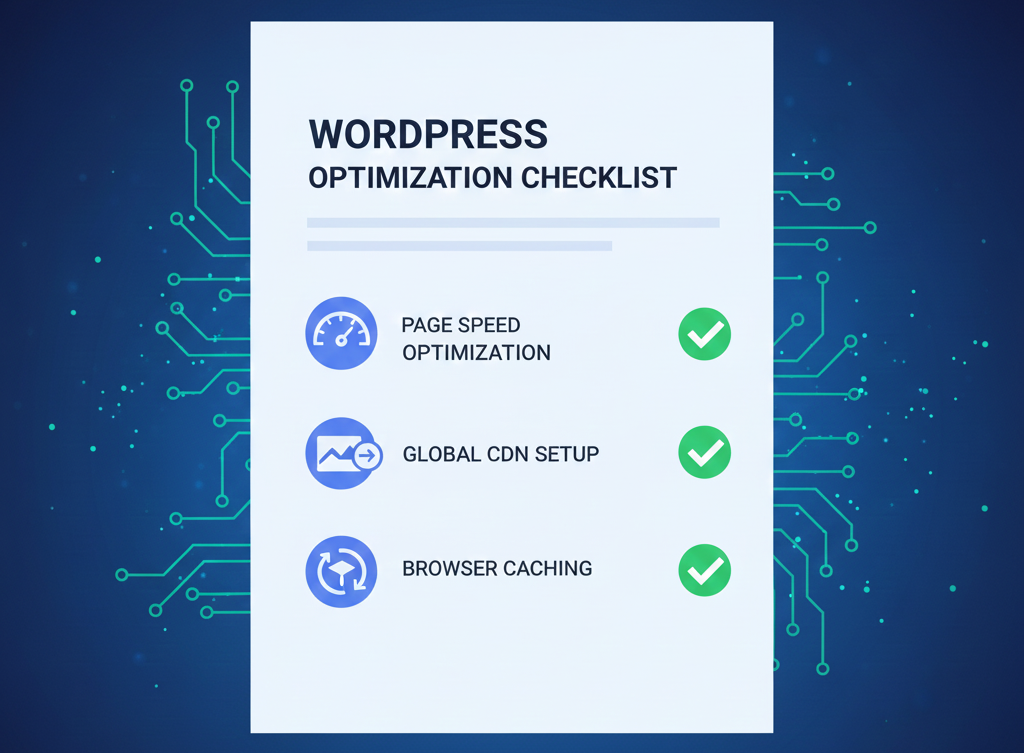
Use this comprehensive WordPress performance checklist to ensure you’ve implemented all key WordPress speed optimization 2025 techniques:
Hosting & Infrastructure
- [ ] Using quality managed WordPress hosting
- [ ] PHP 8.1 or newer enabled
- [ ] HTTP/2 or HTTP/3 supported
- [ ] SSL certificate installed
- [ ] CDN configured and active
Caching
- [ ] Page caching enabled
- [ ] Browser caching configured
- [ ] GZIP compression active
- [ ] Object caching for high-traffic sites
Images
- [ ] All images compressed
- [ ] WebP format used where supported
- [ ] Lazy loading enabled
- [ ] Responsive images serving correct sizes
- [ ] Image dimensions match display size
Code Optimization
- [ ] CSS minified
- [ ] JavaScript minified
- [ ] Critical CSS inlined
- [ ] JavaScript deferred
- [ ] Unused CSS removed
Database
- [ ] Database optimized
- [ ] Post revisions limited
- [ ] Spam and trash cleared
- [ ] Orphaned tables removed
- [ ] Automatic cleanup scheduled
Plugins & Themes
- [ ] Unused plugins deleted
- [ ] All plugins updated
- [ ] Lightweight theme used
- [ ] Unused themes deleted
- [ ] Plugin count under 20
Core Web Vitals
- [ ] LCP under 2.5 seconds
- [ ] INP under 200 milliseconds
- [ ] CLS under 0.1
- [ ] Mobile vitals passing
Monitoring
- [ ] PageSpeed Insights score 90+
- [ ] GTmetrix grade A
- [ ] Uptime monitoring configured
- [ ] Performance tracked monthly
Print this WordPress performance checklist and check items off as you implement them. Revisit quarterly to maintain optimal performance.
If you need professional help implementing this checklist, YAAM Web Solutions specializes in comprehensive WordPress speed optimization 2025 services.
Frequently Asked Questions
Q: What’s a good PageSpeed Insights score to improve for WordPress speed optimization 2025?
A: Aim for 90+ on both mobile and desktop. Scores of 50-90 indicate room for improvement with WordPress performance optimization, while anything under 50 requires immediate attention. Remember that scores are relative—focus on Core Web Vitals metrics which directly impact user experience and rankings.
Q: How often should I perform database optimization in WordPress?
A: Monthly optimization suffices for most sites. High-traffic sites publishing frequently should optimize weekly. Set up automatic cleanups using WP-Optimize to maintain database performance without manual intervention as part of your WordPress speed optimization 2025 routine.
Q: Will WordPress caching plugins slow down my site?
A: No, properly configured WordPress caching plugins dramatically speed up your site by serving pre-generated HTML instead of processing PHP on every page load. The plugin adds minimal overhead while providing massive performance gains—it’s the single most impactful WordPress site speed tip.
Q: Should I use free or paid caching plugins for WordPress speed optimization 2025?
A: Free plugins like W3 Total Cache work well if you have technical knowledge. WP Rocket (paid) is worth the investment for most users because it’s easier to configure correctly and includes additional optimization features. The time saved and performance gains justify the cost for WordPress performance optimization.
Q: How do I know which plugins are slowing down my WordPress site?
A: Install Query Monitor to identify slow database queries and HTTP requests. Test your site speed before and after activating each plugin. Deactivate plugins one at a time and measure PageSpeed Insights score improvements to identify culprits when learning how to speed up WordPress.
Q: Can I optimize WordPress mobile speed separately from desktop?
A: Yes, and you should. Many caching plugins allow separate mobile configurations. Focus on aggressive optimization for mobile—defer more JavaScript, simplify layouts, and prioritize Core Web Vitals WordPress for mobile since Google uses mobile-first indexing.
Q: What’s the fastest way to improve WordPress website speed immediately?
A: Install a caching plugin like WP Rocket and compress your images. These two steps alone typically improve load time by 50-70% and require minimal technical knowledge. They’re the foundation of any WordPress speed optimization 2025 strategy.
Q: How does CDN for WordPress improve international loading speed?
A: CDNs store copies of your static files on servers worldwide. When someone in Australia visits your US-hosted site, they receive images and files from an Australian CDN server instead of waiting for data to travel from the US. This reduces latency significantly for global visitors.
Q: Will upgrading my WordPress hosting for speed really make a difference?
A: Absolutely. Moving from basic shared hosting to managed WordPress hosting can reduce load times by 40-60%. Quality WordPress hosting for speed includes server-level optimizations, faster hardware, and better resource allocation that budget hosting can’t match for WordPress performance optimization.
Q: How do I speed up WooCommerce without breaking functionality?
A: Focus on image optimization, implement object caching, disable cart fragments on non-shop pages, and use WooCommerce-optimized hosting. Test thoroughly after each change. To speed up WooCommerce sites, balance performance with functionality—some features must remain for proper operation.
Q: What’s the relationship between Core Web Vitals WordPress scores and search rankings?
A: Core Web Vitals are confirmed ranking factors. Poor scores can hurt rankings, while good scores provide a ranking advantage. More importantly, they directly measure user experience—faster sites keep visitors engaged, reducing bounce rates and improving conversions beyond just WordPress speed optimization 2025 SEO benefits.
Q: Can I fix slow WordPress speed without coding knowledge?
A: Yes. Most WordPress speed optimization 2025 techniques use plugins requiring no coding: caching plugins, image optimization plugins, and database cleanup tools all have user-friendly interfaces. The strategies to improve WordPress website speed in this guide prioritize accessible solutions anyone can implement.
Conclusion
WordPress speed optimization 2025 isn’t optional—it’s fundamental to online success. Your site’s performance directly impacts search rankings, user experience, conversion rates, and ultimately, your bottom line.

The good news? You don’t need to implement everything simultaneously. Start with the highest-impact WordPress site speed tips:
- Install a quality caching plugin
- Compress and optimize your images
- Choose reliable hosting
- Remove unused plugins
- Set up a CDN
These five steps alone will dramatically improve WordPress website speed for most sites. Once you’ve tackled the basics, work through the more advanced WordPress performance optimization techniques like database optimization, Core Web Vitals tuning, and mobile-specific improvements.
Remember that WordPress speed optimization 2025 is an ongoing process, not a one-time fix. As you add content, install plugins, and grow your site, performance can degrade. Schedule quarterly audits using the WordPress performance checklist to maintain optimal speed.
The techniques for how to speed up WordPress in this guide work for virtually any WordPress site—whether you’re running a personal blog, business website, or e-commerce store. The principles remain constant: reduce what you load, optimize what’s necessary, and leverage caching and CDNs to serve content efficiently.
Monitor your PageSpeed Insights scores, Core Web Vitals WordPress metrics, and real user experience data. These numbers tell you if your optimization efforts are succeeding. Celebrate improvements, but don’t get complacent—there’s always room to optimize WordPress mobile speed and overall performance further.
If you’re feeling overwhelmed or need expert assistance implementing these WordPress speed optimization 2025 strategies, YAAM Web Solutions offers comprehensive performance optimization services. Our team has optimized hundreds of WordPress sites and can quickly identify and fix your specific bottlenecks.
A fast WordPress site isn’t just about vanity metrics—it’s about providing excellent user experience, ranking well in search results, and converting visitors into customers. Every millisecond matters. Start optimizing today, and watch your site’s performance transform.
Your visitors deserve a fast, responsive website. With the WordPress performance checklist and strategies in this guide, you have everything needed to deliver exceptional speed in 2025 and beyond.
About the Author: Aamer Yousuf is a WordPress performance specialist at YAAM Web Solutions with over 9 years of experience optimizing WordPress sites. He’s helped hundreds of businesses improve their site speed, Core Web Vitals scores, and overall user experience through systematic WordPress speed optimization 2025 techniques.