
How to Fix 404 Error in WordPress (Ultimate 2025 Guide to Quick & Easy Solutions)
By Aamer Yousuf | December 4, 2025 | 15 min read
Few things are more frustrating than clicking a link on your WordPress site and seeing the dreaded “404 Page Not Found” error. I learned this the hard way when my client’s online store started showing 404 errors on product pages right before a major sale launch. Panic set in—until I discovered that learning how to fix 404 error in WordPress is actually straightforward.
If you’re struggling with a 404 page not found WordPress error, you’re not alone. Whether your posts suddenly stopped working, pages disappeared after a migration, or your entire site is returning errors, this guide will show you how to fix 404 error in WordPress quickly and effectively.
I’ll walk you through the most common causes and proven solutions to fix 404 error in WordPress, from simple permalink resets to regenerating your .htaccess file. By the end, you’ll know exactly how to troubleshoot and resolve WordPress 404 errors permanently.
Table of Contents
Understanding WordPress 404 Errors
A 404 error means your web server can’t find the page someone requested. In WordPress, this typically happens when the URL exists in your database, but the server doesn’t know how to route the request properly.
Think of it like this: your WordPress database is like a library catalog that lists all your books (pages and posts), but the .htaccess file is the librarian who knows where everything is shelved. When that librarian gets confused or loses their reference sheet, visitors can’t find what they’re looking for—even though it exists.
The good news? Most solutions to fix 404 error in WordPress are straightforward and don’t require coding knowledge. The key is identifying which specific issue is causing your problem.
Common Causes of 404 Errors in WordPress
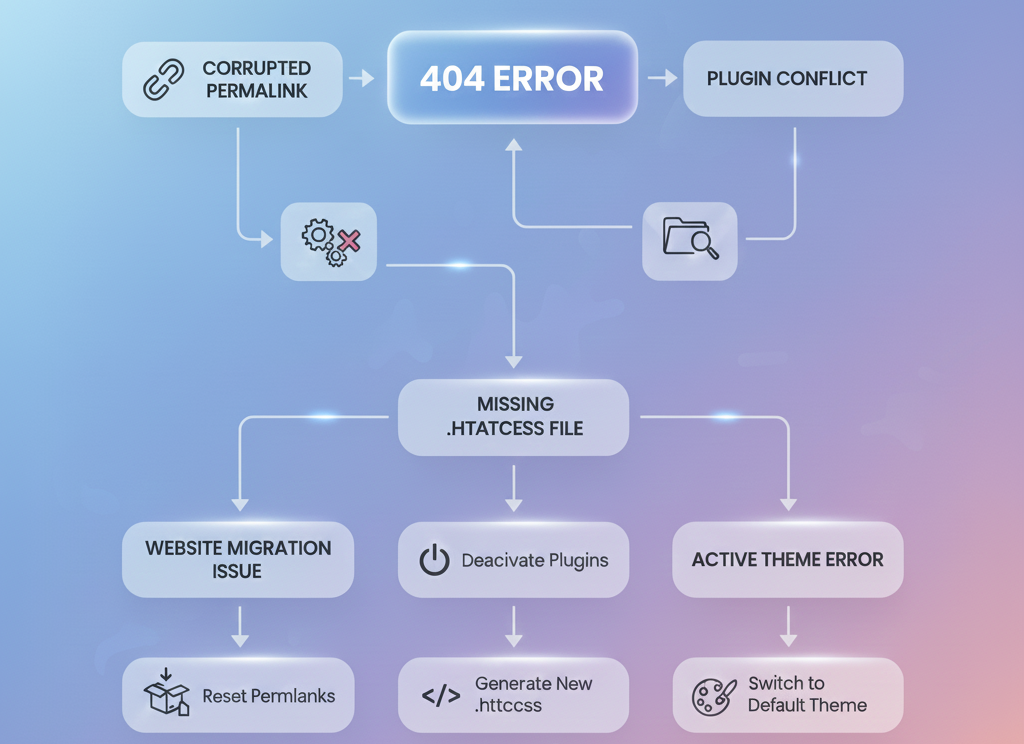
Before you can fix 404 error in WordPress, you need to understand what’s causing it. Here are the most frequent culprits and how to address them:
Corrupted Permalink Structure
WordPress uses permalinks to create user-friendly URLs. When this structure gets corrupted—often after plugin installations, theme changes, or updates—you’ll see a WordPress permalink 404 issue where pages exist but won’t load.
Missing or Corrupted .htaccess File
Your .htaccess file tells your server how to handle URL requests. If it’s missing, incorrectly configured, or has the wrong permissions, WordPress can’t route traffic properly, causing a 404 page not found WordPress error across your entire site.
Plugin Conflicts
Some plugins modify URL structures or routing rules. When two plugins conflict or a plugin is deactivated incorrectly, you might encounter WordPress posts showing 404 errors even though the content exists in your database.
Theme Issues
Poorly coded themes or theme updates can sometimes break URL routing, creating a WordPress theme causing 404 error situation where specific page templates won’t load correctly.
Migration Problems
Moving your site to a new host or domain often causes a 404 error after migration WordPress if the database URLs don’t match your new site address or if server configurations differ.
Deleted Pages With Existing Links
When you delete pages but other content still links to them, visitors encounter broken links—a different but related issue when learning how to fix WordPress broken links.
Quick Fix: Reset Your Permalinks
This is the first solution to try when you need to fix 404 error in WordPress. It works surprisingly often and takes less than a minute.
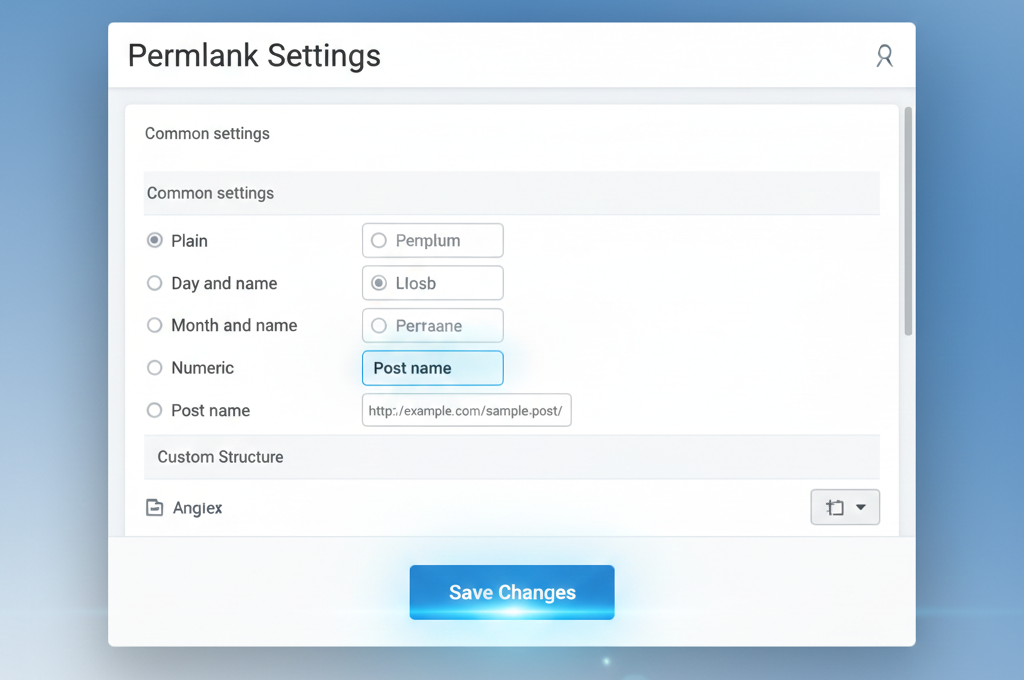
Step 1: Log into your WordPress admin dashboard
Step 2: Navigate to Settings → Permalinks
Step 3: Don’t change anything—simply click the “Save Changes” button at the bottom
Step 4: Test your site to see if the 404 errors are resolved
This WordPress permalink reset forces WordPress to regenerate your URL rewrite rules and update your .htaccess file. It successfully helps fix 404 error in WordPress in many common permalink-related cases instantly.
If you’re still seeing errors after this, continue to the next solutions.
Regenerate .htaccess File WordPress
Your .htaccess file controls how your web server handles requests. If it’s missing or corrupted, you’ll need to regenerate .htaccess file WordPress manually to fix 404 error in WordPress effectively.
Check If .htaccess Exists
First, verify whether your .htaccess file exists:
Step 1: Connect to your site via FTP using a client like FileZilla
Step 2: Navigate to your WordPress root directory (usually public_html or www)
Step 3: Look for a file named .htaccess
If you can’t see it, enable “Show hidden files” in your FTP client settings, as files beginning with a dot are hidden by default.
Create a New .htaccess File
If the file is missing or corrupted, create a new one:
Step 1: Create a blank text file on your computer
Step 2: Add this default WordPress .htaccess code:
# BEGIN WordPress
<IfModule mod_rewrite.c>
RewriteEngine On
RewriteBase /
RewriteRule ^index\.php$ - [L]
RewriteCond %{REQUEST_FILENAME} !-f
RewriteCond %{REQUEST_FILENAME} !-d
RewriteRule . /index.php [L]
</IfModule>
# END WordPress
Step 3: Save the file as .htaccess (not .htaccess.txt)
Step 4: Upload it to your WordPress root directory
Step 5: Set file permissions to 644 (right-click the file in your FTP client and select “File permissions”)
This should resolve most 404 not found troubleshooting WordPress issues related to server configuration and help you fix 404 error in WordPress caused by missing or corrupted .htaccess files.
Verify Server Supports .htaccess
Some servers (particularly Nginx) don’t use .htaccess files. If you’re on Nginx, you’ll need to configure URL rewriting in your server configuration file. Contact your hosting provider for assistance with this WordPress URL structure fix.
Fix WordPress Posts Showing 404
If specifically your WordPress posts showing 404 while pages work fine (or vice versa), try these targeted solutions:
Flush Rewrite Rules Via Code
Sometimes the permalink reset doesn’t fully clear cached rewrite rules. You can force a complete flush:
Step 1: Access your site via FTP
Step 2: Navigate to /wp-content/themes/your-theme/
Step 3: Open your theme’s functions.php file
Step 4: Add this code at the very end (before the closing ?> if it exists):
function custom_flush_rewrite_rules() {
    flush_rewrite_rules();
}
add_action('init', 'custom_flush_rewrite_rules');
Step 5: Visit your site homepage once
Step 6: Remove the code you just added
This forces WordPress to completely regenerate URL routing rules, often fixing stubborn cases where you need to fix 404 error in WordPress for posts specifically. This method works when standard permalink resets don’t solve the problem.
Check Post Type Registration
Custom post types need to be registered correctly to work. If a plugin that created custom post types was deactivated, those posts will show 404 errors until you reactivate it or properly remove the content.
Troubleshoot 404 Error After Migration WordPress
Site migrations are notorious for causing 404 problems. Here’s how to fix 404 error after migration WordPress with systematic troubleshooting:
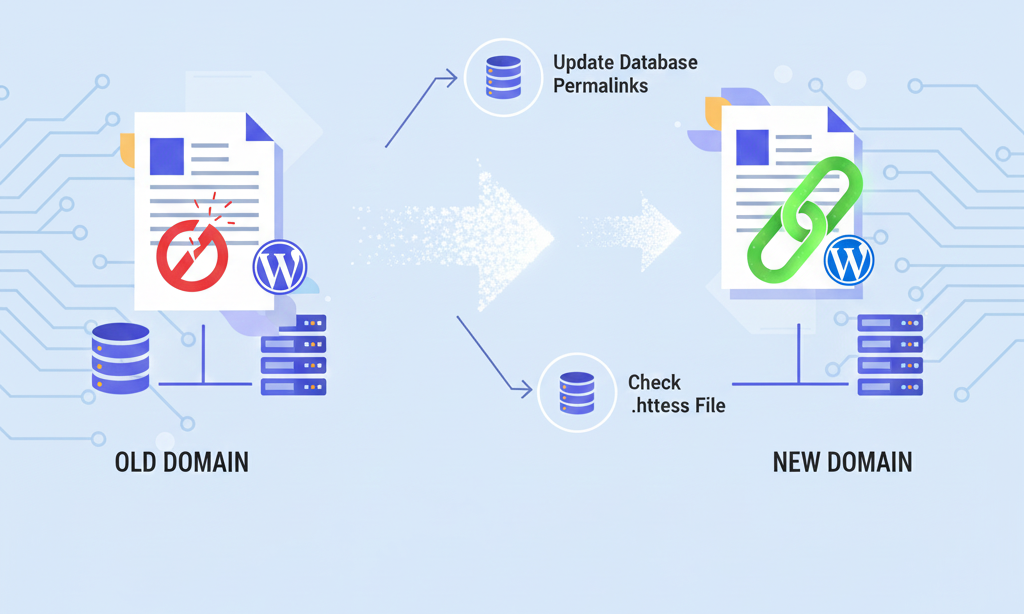
Update WordPress Site URLs
Step 1: Log into your WordPress dashboard
Step 2: Go to Settings → General
Step 3: Verify that both “WordPress Address (URL)” and “Site Address (URL)” match your new domain exactly
Step 4: Save changes
If you can’t access your dashboard due to 404 errors, update these via database:
Step 1: Access phpMyAdmin through your hosting control panel
Step 2: Select your WordPress database
Step 3: Find the wp_options table
Step 4: Look for rows with option_name values of siteurl and home
Step 5: Update the option_value to your new domain (including http:// or https://)
Check Server Configuration
Different hosting providers have different server configurations. What worked on your old host might not work on your new one:
- Verify your new server supports mod_rewrite (Apache) or URL rewriting (Nginx)
- Check file permissions—directories should be 755 and files should be 644
- Ensure your .htaccess file uploaded correctly during migration
Search and Replace URLs in Database
Use a plugin like Better Search Replace to find and replace all instances of your old URL with your new one throughout your database. This comprehensive WordPress URL structure fix ensures internal links work correctly and helps fix 404 error in WordPress after site migrations.
If you’re experiencing complex migration issues, YAAM Web Solutions specializes in WordPress migrations and can handle the technical aspects to fix 404 error in WordPress for you.
Fix WordPress Theme Causing 404 Error
Sometimes a WordPress theme causing 404 error is the culprit, especially after theme updates or switches.
Switch to Default Theme
Step 1: Log into your WordPress dashboard
Step 2: Go to Appearance → Themes
Step 3: Activate a default WordPress theme (like Twenty Twenty-Four)
Step 4: Check if your 404 errors disappear
If the errors are gone, your theme was the problem. Contact the theme developer for support or consider switching to a better-coded theme.
Check Theme Template Files
Some themes use custom URL routing that can conflict with WordPress core. Review your theme’s documentation for any special permalink requirements.
Clear Theme Cache
If you’re using a caching plugin or theme with built-in caching, clear all caches after making changes. Old cached routes can make it seem like fixes aren’t working.
How to Fix WordPress Broken Links
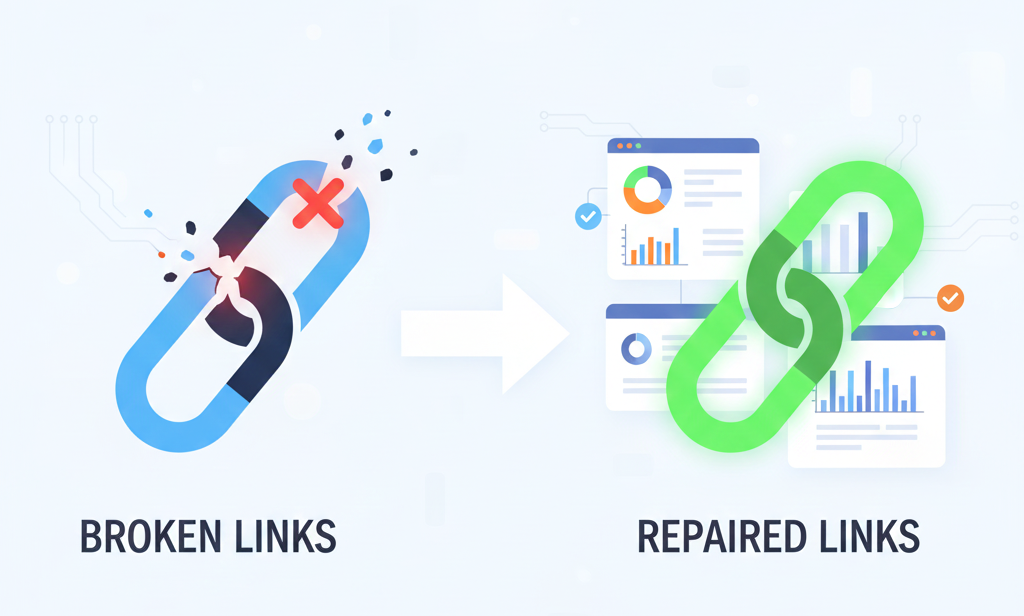
Learning how to fix WordPress broken links is essential for both user experience and SEO. Here’s a systematic approach:
Install a Broken Link Checker
Use the Broken Link Checker plugin to automatically scan your site:
Step 1: Install and activate the plugin
Step 2: Go to Tools → Broken Links
Step 3: Review all detected broken links
Step 4: Either update the links to correct destinations or remove them
Set Up 301 Redirects
For permanently moved or deleted content, create 301 redirects to guide visitors to relevant replacement pages:
Step 1: Install the Redirection plugin
Step 2: Go to Tools → Redirection
Step 3: Add redirects mapping old URLs to new destinations
This preserves SEO value and improves user experience when you fix WordPress broken links.
Create a Custom 404 Page
While fixing errors is ideal, having a helpful custom 404 page provides value when visitors do encounter broken links:
- Suggest popular content
- Include a search bar
- Provide navigation links back to main sections
- Use friendly, helpful language instead of technical jargon
WordPress URL Structure Fix
If you’re dealing with deeper WordPress URL structure fix requirements, consider these solutions:
Understand WordPress Rewrite Rules
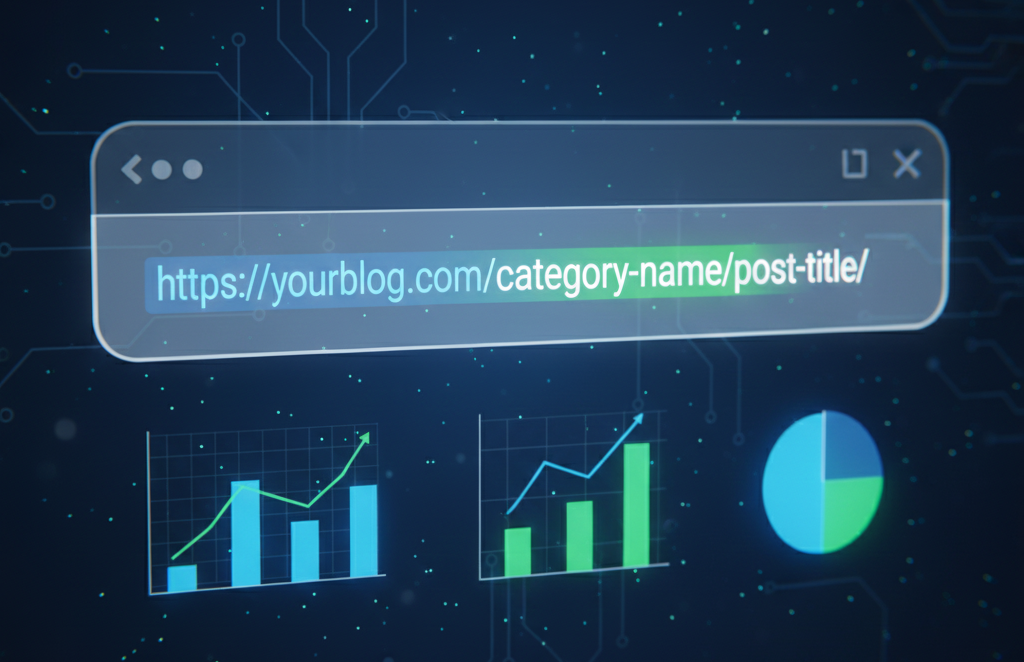
WordPress uses rewrite rules to transform ugly URLs like yoursite.com/?p=123 into clean URLs like yoursite.com/my-post-title/. When these rules break, you get 404 errors.
The Rewrite Rules Inspector plugin lets you view and debug these rules.
Custom Permalink Structures
If you need a custom permalink structure:
Step 1: Go to Settings → Permalinks
Step 2: Select “Custom Structure”
Step 3: Use available tags like %postname%, %category%, %year%, etc.
Step 4: Save changes
Important: Changing your permalink structure after your site is established can break existing links. Always set up 301 redirects when changing URL structures.
Category and Tag Base Issues
Sometimes the issue is with category or tag pages specifically:
Step 1: Go to Settings → Permalinks
Step 2: Look at the “Optional” section
Step 3: Try changing or removing the Category base and Tag base
Step 4: Save changes and test
Prevent Future 404 Errors
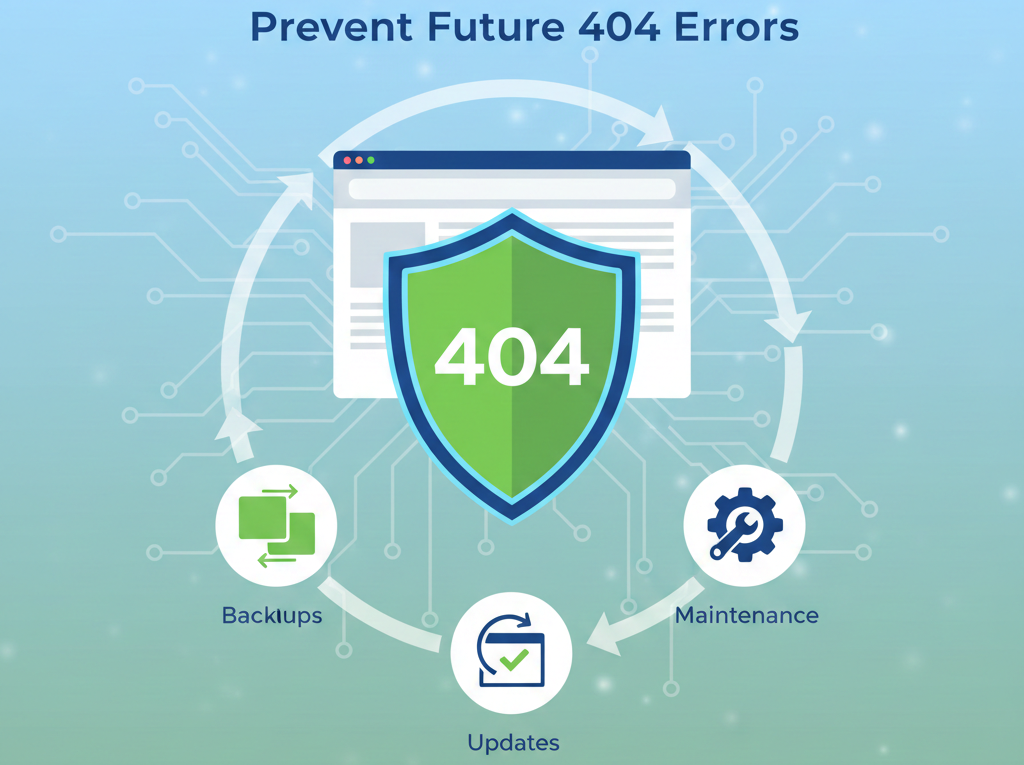
Once you fix 404 error in WordPress, take these preventive measures to avoid future issues:
Regular Backups
Always maintain current backups before making changes. This lets you quickly restore if something breaks. Use plugins like UpdraftPlus for automated backups.
Test Before Going Live
If you’re making major changes (theme switches, plugin updates, migrations), test everything in a staging environment first.
Keep WordPress Updated
Run the latest WordPress core, theme, and plugin versions. Many updates include bug fixes that prevent 404 errors.
Quality Plugins and Themes Only
Use reputable, well-maintained plugins and themes from trusted sources. Poor code quality is a common cause of URL routing problems.
Monitor Your Site
Set up uptime monitoring with services like UptimeRobot to get alerted immediately when pages start throwing 404 errors.
When to Seek Professional Help
Sometimes WordPress 404 not found troubleshooting requires expert intervention. Consider professional help when you can’t fix 404 error in WordPress using standard methods:
- You’ve tried all these solutions without success
- Your site has complex custom functionality
- 404 errors appeared after major changes you don’t fully understand
- You’re dealing with a WordPress page not opening issue on a production site serving customers
- Time is critical and you need immediate resolution
YAAM Web Solutions offers professional WordPress troubleshooting services, including comprehensive 404 error diagnosis and resolution. Our team has handled hundreds of WordPress permalink 404 issue cases and can quickly identify and fix even the most stubborn problems.

Frequently Asked Questions
Q: Why do I suddenly have 404 errors on my WordPress site?
A: Sudden 404 errors typically happen after WordPress updates, plugin installations/deactivations, theme changes, or server configuration changes. The most common cause is corrupted permalink structure, which you can usually fix by simply resaving your permalink settings. If that doesn’t work to fix 404 error in WordPress, you may need to regenerate .htaccess file WordPress.
Q: Will fixing 404 errors affect my SEO?
A: Actually, learning how to fix 404 error in WordPress improves your SEO. Search engines penalize sites with too many broken pages. Using proper 301 redirects when you fix WordPress broken links preserves your page rankings and passes link equity to new destinations.
Q: How do I fix 404 error in WordPress after changing domains?
A: After domain changes, you need to update WordPress URLs in Settings → General, perform a search-and-replace on your database for old URLs, regenerate your .htaccess file, and reset permalinks. This WordPress URL structure fix ensures all internal links point to your new domain. This is a common 404 error after migration WordPress scenario.
Q: Can a WordPress theme cause 404 errors?
A: Yes, a WordPress theme causing 404 error is possible, especially if the theme uses custom URL routing or template hierarchy. Switch temporarily to a default WordPress theme like Twenty Twenty-Four to test. If errors disappear, your theme is the culprit.
Q: What’s the difference between 404 errors and server errors?
A: A 404 page not found WordPress error means the server is working but can’t find the requested page. Server errors (500, 502, 503) mean the server itself has problems. 404s are typically easier to fix and don’t indicate serious server issues.
Q: Should I delete my .htaccess file to fix 404 errors?
A: Don’t delete it—WordPress needs it. Instead, rename it temporarily (to .htaccess-old) to see if it’s causing issues. Then regenerate .htaccess file WordPress by resaving permalinks. WordPress will create a fresh one automatically.
Q: How do I fix WordPress posts showing 404 but pages work fine?
A: This specific WordPress posts showing 404 issue usually means your post rewrite rules are corrupted. Try the permalink reset first, then flush rewrite rules via code if needed. Check that you haven’t accidentally set posts to not display in your reading settings.
Q: Why am I getting 404 errors on my WordPress admin or login page?
A: If even your admin area shows WordPress page not opening errors, your WordPress core files may be corrupted or your .htaccess file is severely misconfigured. Try uploading fresh WordPress core files via FTP (without overwriting wp-config.php or wp-content folder), then regenerate your .htaccess file.
Q: Can I fix 404 errors without accessing my WordPress dashboard?
A: Yes. You can fix 404 error in WordPress through FTP by manually creating/editing your .htaccess file, or through phpMyAdmin by updating database settings. However, dashboard access makes the WordPress permalink reset process much simpler when you need to fix 404 error in WordPress quickly.
Q: How long does it take to fix a WordPress 404 error?
A: Simple WordPress 404 error fix cases (corrupted permalinks) take under 5 minutes. Complex issues like plugin conflicts or migration problems might take 30 minutes to a few hours depending on the cause. Most issues fall into the “quick fix” category once you identify the root cause and know how to fix 404 error in WordPress properly.
Conclusion
Learning how to fix 404 error in WordPress doesn’t have to be intimidating. As we’ve covered, most WordPress 404 error fix solutions are straightforward—often as simple as resaving your permalinks or regenerating your .htaccess file.
Start with the quick fixes: reset permalinks, check your .htaccess file, and verify your site URLs are correct. These simple steps help you fix 404 error in WordPress within minutes in the majority of WordPress permalink 404 issue cases.
For more complex situations like a 404 error after migration WordPress or WordPress theme causing 404 error, the systematic troubleshooting approach in this guide will help you identify and resolve the problem to fix 404 error in WordPress successfully.
Remember these key takeaways:
- Always try the permalink reset first—it’s the fastest WordPress 404 not found troubleshooting step
- Your .htaccess file is crucial for URL routing in Apache servers
- Regular backups protect you when experimenting with fixes
- Prevention through quality themes, plugins, and regular updates saves time
- When in doubt, test changes in a staging environment first
If you’ve worked through these solutions and still can’t fix WordPress broken links or resolve persistent 404 errors, don’t hesitate to reach out to professionals. YAAM Web Solutions specializes in WordPress troubleshooting and can quickly diagnose issues to help you fix 404 error in WordPress even in the most stubborn cases.
A functioning WordPress site without 404 errors provides better user experience, stronger SEO performance, and increased conversions. Taking time to properly implement a WordPress URL structure fix and learn how to fix 404 error in WordPress pays dividends in site reliability and visitor satisfaction.
Now you have the complete toolkit to handle any WordPress page not opening situation. Bookmark this guide for future reference—404 errors happen to everyone, and knowing exactly how to fix 404 error in WordPress makes all the difference in maintaining a professional, functional website.
About the Author: Aamer Yousuf is a WordPress developer and technical writer at YAAM Web Solutions with over 8 years of experience troubleshooting WordPress issues. He’s helped hundreds of site owners resolve 404 errors and other technical challenges, and shares his expertise through practical, easy-to-follow guides.